The things that end a device’s useful life are mostly not the things it was sold on. Processors rarely become too slow for the work they were bought for, and screens rarely fail on their own. Batteries wear out, storage fills, cooling passages clog with dust, and ports loosen. Most of those are addressable, and the habits that address them cost very little.
The reason second-hand devices are often described as slow is usually not the processor. It is a battery that can no longer supply peak current, a storage volume above ninety per cent full, or a thermal path blocked by a mat of dust. Each of those is a maintenance item, and each is cheaper to deal with than a replacement.
The battery is a service item
A battery is a consumable, in the same category as a printer cartridge. It holds less charge as it ages, and it also loses its ability to deliver current quickly, which is a separate effect that matters more for perceived performance.
When a battery can no longer supply a burst of current, the system limits the processor to avoid an unexpected shutdown. The device then feels slow at exactly the moments that matter, and a settings screen may report that performance management is active. Replacing the battery restores both the runtime and the speed.
Three habits slow the decline:
- Keep the charge between roughly 20 and 80 per cent where the platform offers a charge limit, which reduces the time spent at the extremes where ageing is fastest.
- Avoid sustained heat, particularly charging while running demanding work, because high temperature accelerates the ageing reaction more than any other single factor.
- Use the correct charger, with the voltage and current the device requests, and avoid unregulated supplies.
Battery health is readable on most platforms, and a reading in the low eighties or below is the point at which a replacement usually changes how the device feels rather than only how long it runs.
Storage management as routine
A filling storage volume degrades performance before it fills completely, because the system needs free space to write temporary files, caches and swap.
- Keep at least ten to fifteen per cent free as a working margin, and more on a volume used for video editing or virtualisation.
- Audit the storage breakdown periodically, because caches and downloaded media often account for more than the applications do.
- Clear application caches through the application rather than deleting folders, which can corrupt an application’s state.
- Move archives of photographs and video to external storage, keeping working files local.
Storage is not only a capacity question. On a nearly full volume, write performance falls away, and the effect appears as general sluggishness rather than as a message about space.
Heat, dust and sustained performance
Every device has a thermal limit, and it protects itself by slowing down. The headline performance figures describe the first minute of work; what a user experiences over an hour is the sustained figure, and the two differ substantially on thin devices.
Dust is the common cause of a thermal path that worsens with age. It collects on heatsinks, fan blades and vents, where it insulates precisely the surfaces that are meant to shed heat. A device that has run for several years in a carpeted room has less cooling capacity than the same model when new, and the symptom is thermal throttling that arrives sooner and lasts longer.
The maintenance is mechanical and modest: a soft brush or a short burst of air at the vents, from outside the chassis, at intervals that match the environment. Where a device has a serviceable fan assembly, an internal clean is a task for a repair shop rather than a household tool, because the fan blades are easily damaged and the assembly is often not sold separately.
Two related habits matter. Elevating a laptop so that its underside vents are unobstructed changes the airflow more than a cooling pad does. And avoiding soft surfaces such as bedding or upholstery under a working device prevents both the blockage and the short-term overheat.
Ports, cables and mechanical wear
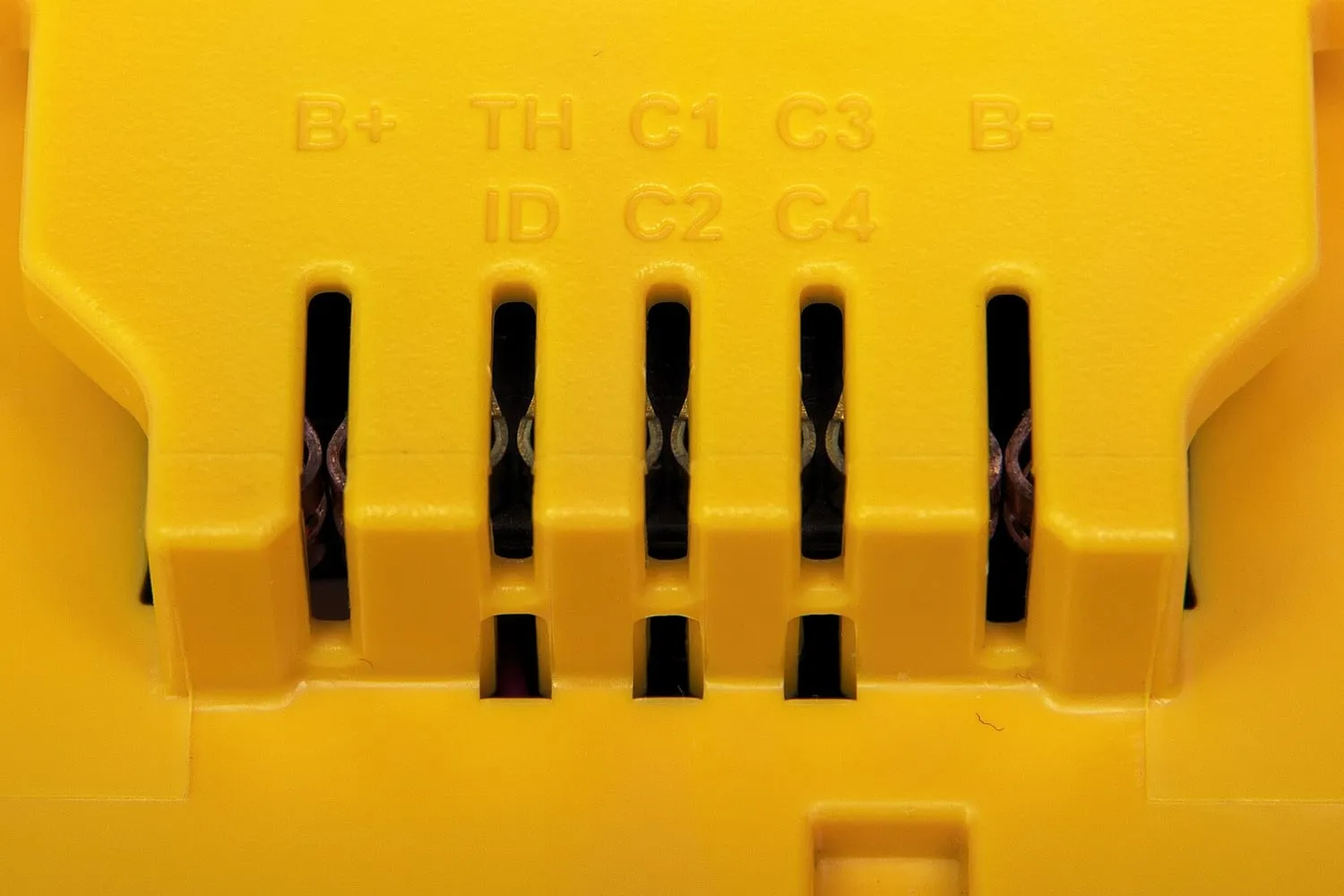
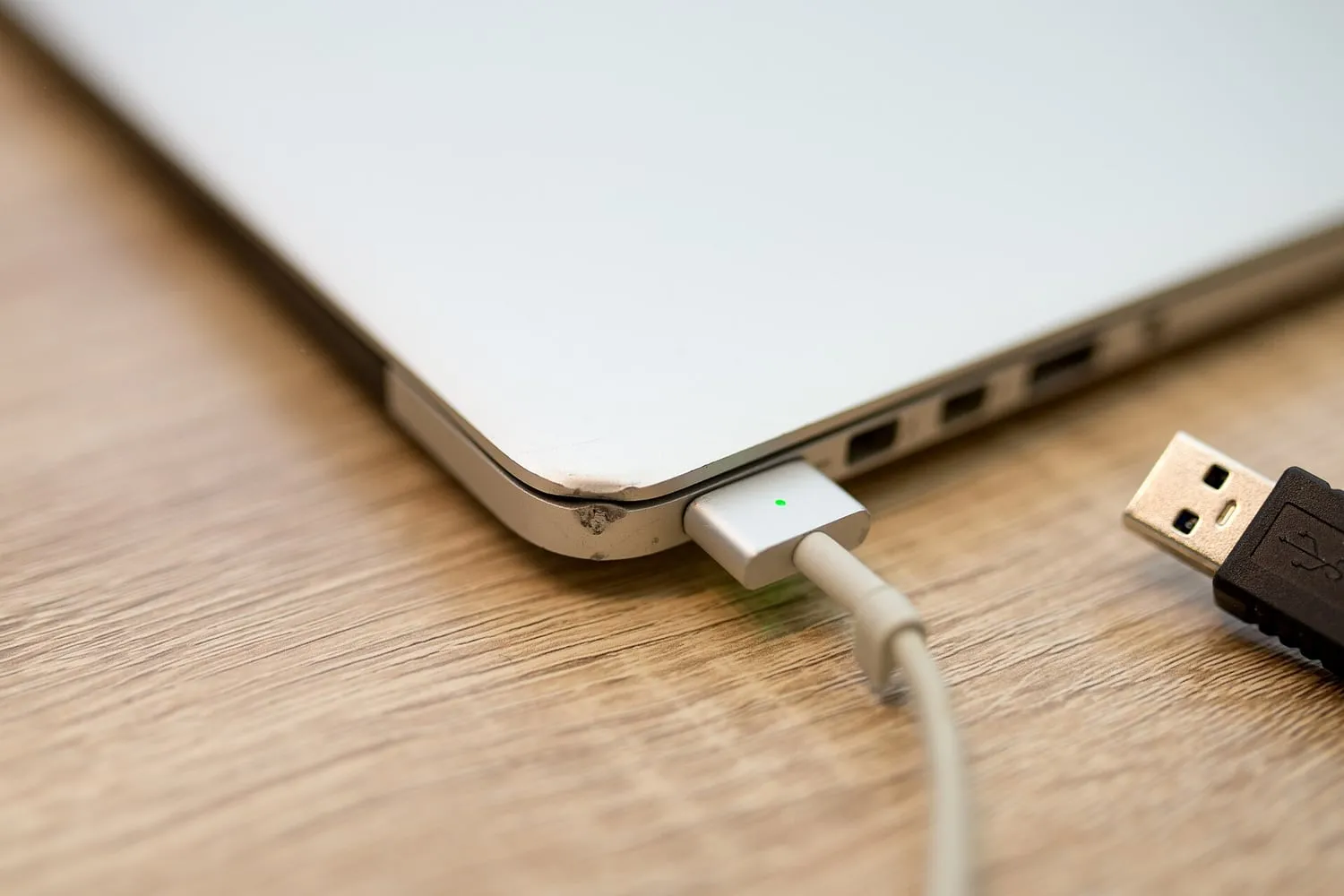
Charging ports take daily mechanical stress and fail more often than most other components. The connector is usually a small board-mounted socket, and the failure is typically either looseness or debris.
- Inspect the port under light for lint and dust, which compact at the base of the socket and prevent the cable seating fully. Cleaning with a dry, non-metallic tool restores many ports that were thought to be worn out.
- Use a cable with a sound connector, and replace any cable that requires a particular angle to work, because a bent plug damages the socket rather than only itself.
- Avoid strain on the cable while the device charges, especially on a lap or in a bag, where the connector takes sideways load.
- Keep the socket dry, and allow a wet device to dry fully before charging, because corrosion inside a port is progressive.
Where the port is soldered to a main board rather than mounted on its own small board, a failure is a board-level repair. That makes the cheap preventive habits worth more than they look.
Resetting and reinstalling as a last step
A clean installation returns a device to something close to its original software state, and it is the correct response to a specific problem: accumulated software corruption, or a storage volume that remains slow after space has been freed.
It is not a general performance cure, and it is worth being clear about which problem is being solved. A device that is slow because the battery cannot supply current will be slow again within a day. A device that is slow because the volume is full of caches will improve until the caches return.
Where a reset is appropriate, the sequence is to back up first, then erase, then restore data selectively rather than wholesale, so that whatever caused the problem is not restored with the data.
What is worth repairing, and what is not
Repair decisions follow the two clocks discussed elsewhere: hardware life and software support.
- A battery replacement on a device with several years of support left is usually the best value in consumer electronics, because it restores runtime and speed together.
- A screen replacement is worth it where the part is available at a fraction of the device value and the device is otherwise sound.
- A port, keyboard or hinge repair is worth it where the component is sold separately. Where it is part of a larger assembly, the calculation often changes.
- A repair on a device nearing the end of its support window buys only the time remaining, and should be priced against that.
Repair almost always has a lower environmental cost than replacement, and it is worth checking the part price and availability before concluding otherwise.
A maintenance routine that takes an hour a year
The routine is short. Check battery health and act when it falls into the low eighties. Keep a tenth of the storage free. Clear dust from the vents and keep the underside clear during demanding work. Inspect the charging port for debris and retire any cable that has become fussy. Update the software for as long as updates arrive. Reset only when a specific fault calls for it.
None of that requires opening the case, and together those habits are the difference between a device that lasts as long as its support window and one that is replaced two years early for reasons that were never about the hardware.